
In this blog, you will learn how to load a Parquet file into a Snowflake table. Follow the post content below step by step.
Post Content
Download the sample Parquet data file
Create a Table in Snowflake for Data Load
View the data before loading it into the table
Copy Data into the Target Table
Prerequisite
SnowSQL should be installed on your local machine. If you don’t have SnowSQL, you can install it from here.
Download the sample Parquet data file
Download the sample Parquet data file from the Snowflake website by following the provided link.- cities.parquet
Note: You cannot directly open a Parquet file on your system because Parquet is a binary file format specifically designed for efficient storage and processing of structured data.
You can open Parquet files in data analysis tools like Apache Spark, Apache Arrow, Apache Drill, and more.
For your reference, you can preview the data from the Parquet file in the screenshot provided below.

Create a Table in Snowflake for Data Load
Step-1: Log in to the Snowflake account and Add a new SQL Worksheet.
Step-2: To select the database and schema in which you want to create a table, write the following SQL query and execute it.
Run the following SQL queries one by one.
USE ROLE SYSADMIN;
USE DATABASE DEVDB;
USE SCHEMA PUBLIC;
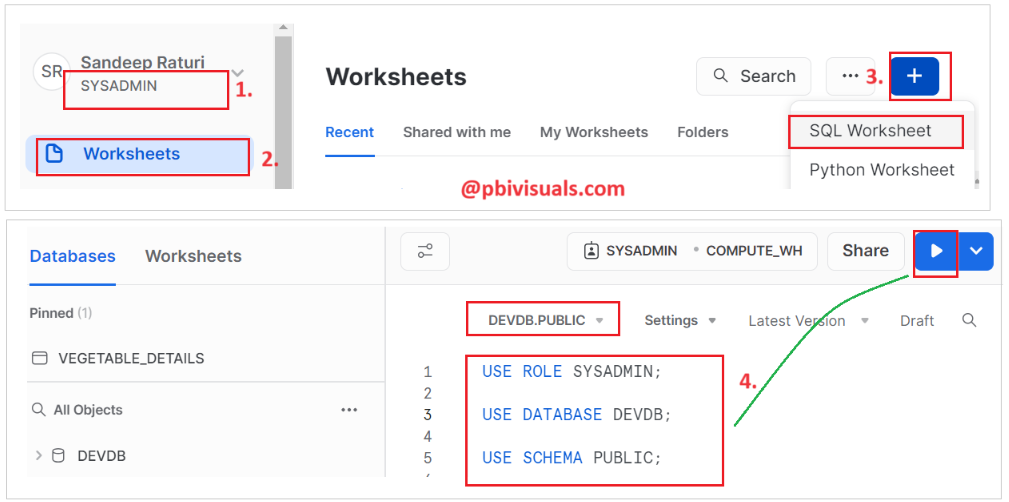
Step-3: Now, write a CREATE TABLE statement to create a table and execute it.
Create or replace table cities(
continent varchar default null,
country varchar default null,
city variant default null
);
Step-4: Table created successfully.

Create File Format Objects
Define a file format that specifies how your data is formatted in the files.
Step-1: Execute the following SQL query to create a file format.
CREATE OR REPLACE FILE FORMAT my_parquet_file_format
TYPE = parquet;

Create Stage Object
Execute the CREATE STAGE command to create the internal stage. Execute the below-mentioned commands one by one.
Note:
- Internal stages in Snowflake provide a managed and secure way to temporarily store data files within the Snowflake service for efficient data loading and unloading operations.
- Only account administrators (users with the
ACCOUNTADMINrole) or a role with the global CREATE STAGE privilege can execute this SQL command.
Use role ACCOUNTADMIN;
CREATE OR REPLACE STAGE my_parquet_file_stage
FILE_FORMAT = my_parquet_file_format;

Stage the Data File
Execute the PUT command to upload the parquet file from your local file system to the named stage.
Step-1: Before proceeding further, please find your account identifier and make a note of it for future reference.

Step-2: Open a new terminal window.
Step-3: Execute the following command to establish a connection to Snowflake, and then enter your Snowflake account password.
snowsql -a <account_identifier> -u <username>
- <account_identifier>: The account identifier of your Snowflake account.
- <username>: The username of your Snowflake user account.
Note: When you copy the Account ID, it may contain a DOT. Please replace it with a DASH after pasting it.

Step-4: Use the following commands individually to establish the context for database objects.
USE ROLE ACCOUNTADMIN;
USE WAREHOUSE COMPUTE_WH;
USE DATABASE DEVDB;
USE SCHEMA PUBLIC;

Step-5: Copy the files from the local system to a Snowflake stage. Execute below command-
PUT file://C:\Work\cities.parquet @my_parquet_file_stage;


Step-6: View the list of objects/files within a specific stage. Execute below command.
list @my_parquet_file_stage;

View the data before loading it into the table
Before loading data into the table, you can execute the following query to check the file data.
Note: You can also execute the same query using SnowSQL, but for a better view, consider switching to the Snowflake Web UI.
Log in to the Snowflake portal, open a SQL worksheet, and execute the following SQL query.
Select $1 from @my_parquet_file_stage/cities.parquet;

Execute below query to view data in some better way.
Select $1:continent::varchar,
$1:country:name::varchar,
$1:country:city::variant
from @my_parquet_file_stage/cities.parquet;

Copy Data into the Target Table
The COPY INTO command is used to load data from external files, such as CSV, TSV or Parquet files, into a Snowflake table.
Step-1: Execute the commands below-
Copy into cities from (
select $1:continent::varchar,
$1:country:name::varchar,
$1:country:city::variant
from @my_parquet_file_stage/cities.parquet);

Step-2: The data has been loaded into the target table.
Select * from cities;

Step-3: But the city data is still in JSON array format. Let’s transform it into a tabular format.
Select continent, country, value::varchar AS “city” from cities,
LATERAL FLATTEN(input => city) AS city;

Note:
value::varchar AS “city”: This part renames the value column (which is generated by the LATERAL FLATTEN operation) as “city" and casts it to the VARCHAR data type. The value column is created as a result of the LATERAL FLATTEN operation and contains the flattened values from the city column.
The LATERAL keyword indicates that the operation depends on values from the preceding table, and FLATTEN is used to unroll the nested data structure.
Thank you for reading this post, and I hope you enjoyed it!
