
In this blog you will understand “How to setup drill through functionality in card visual?”
Refer- Card visual, Multi-row card visual
Let’s get started-
Add one card visual into Power BI canvas and drag any numeric column value there. See the below given screen shot for your reference.

Now add one page for Drill through details-
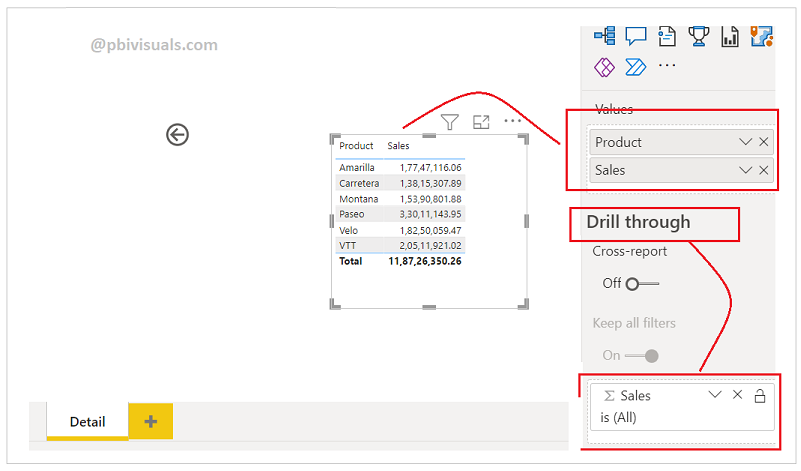
Add new page for Drill through details, see below given screen shot-
Important Note-
-Make sure you have installed latest Power BI version, 2019 onwards.
-Card visual field and Drill through field should be same, other wise it will not work.
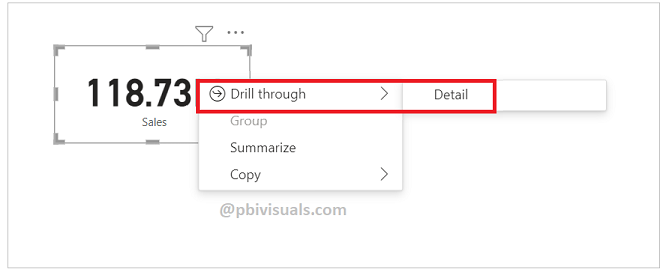
See the final result-
Refer more Power BI visuals- Power BI Visuals
Hope you enjoyed the post. Your valuable feedback, question, or comments about this post are always welcome.
