
In this blog you will understand working of “Enable Load” and “Include In Report Refresh” in Power Query Editor.
Let’s begin with definition-
Enable Load means results provided by the query are available for report builder else you may use it in other queries like merging data but it is not shown in the report builder.
Include In Report Refresh means query gets refreshed automatically when you press refresh button on the ribbon.
How to find both in Power Query Editor?
Under Home tab, click on Transform data, after that one Power Query window will be appear.
Under Power Query Editor window, right side under Queries section > Right click on the name of query/ table and you can see the both options.
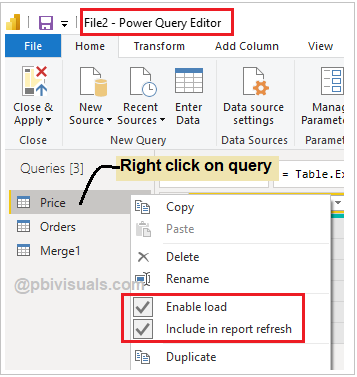
Understand queries-
You can see in above screen shot there are three queries – Price, Orders & Merge1.
Merge1 is a Inner join result of Price & Orders. You can achieve this by using Merge Queries as New.
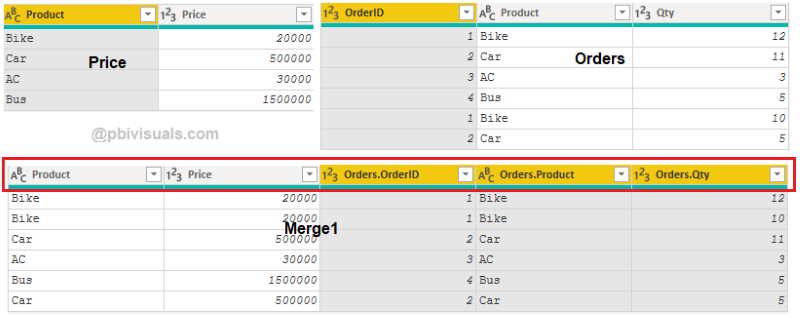
Understand Enable Load-
Merge1 is enough for visualizations and calculations, but the other two queries are still taking up space in the model.
Since both of these queries are used in Merge1, you can’t delete them. Simply hiding the tables won’t help, as they will still consume space.
In this case, you can disable loading. Right-click the query and uncheck Enable Load.
You will see a “Possible data loss warning” because this action removes the tables from the report. Click OK to proceed.
Now you can see both query names in italic font, which means they have been successfully enabled for load.
fter that, click Close & Apply. In the Fields section, you will see only the Merge1 table.

Understand – “Include In Report Refresh”
See the example-

Uncheck “Include in Report Refresh” for all queries except Orders.
In the Power Query Editor window, right-click the query name, deselect “Include in Report Refresh”, and repeat this for all other queries except Orders.
Once done, click Close & Apply to save the changes.
It should be like this-

Click the Refresh button in the Home ribbon to see the results.

And whenever you want to get it back, just checked both the options as per your need.
Refer more Power BI Post – Power BI
Hope you enjoyed the post. Your valuable feedback, question, or comments about this post are always welcome.

What if I made a mistake by clicking “enable load”, but I actually need the those for report. How can I enable those table to build the report?